
Welcome to echarts4r, let’s explore the package
together.
- All functions of the
echarts4rpackage start withe_. - All its Shiny proxies end
with
_p. - All
echarts4rplots are initialised withe_charts. - All functions are
|>friendly. - Most functions have escape hatches ending in
_.
Video & Article
Thanks to Sharon Machlis there is an amazing video and article introducing echarts4r.
Your first plot
Let’s build a line chart. First, we’ll prepare the data, load the
library and pipe the data to e_charts.
# prepare data
df <- airquality

# pad month/day with leading zero and convert to date
df$Month <- sprintf("%02d", df$Month)
df$Day <- sprintf("%02d", df$Day)

df$Date <- paste("1973", df$Month, df$Day, sep = "-") |>
as.Date(format = "%Y-%m-%d")If you wish to use column names as quoted strings you can use the
escape hatches with functions ending in _.
The easiest way to build your charts is to use the |>
pipe operator to add plots, elements and options. Notice that the charts
are interactable without any specific code additions. Try expanding the
average wind speed view by clicking on Temp in the legend to
disable the temperature line.
Options
We could also change the lines to make them smooth.
df |>
  e_charts(Date) |> # initialise and set x
  e_line(Temp, smooth = TRUE) |>  # add a line
  e_area(Wind, smooth = TRUE) # add area
Lets label the X axis with the convenience function
e_axis_labels.
df |>
  e_charts(Date) |> # initialise and set x
  e_line(Temp, smooth = TRUE) |>  # add a line
  e_area(Wind, smooth = TRUE) |> # add area
  e_axis_labels(x = "1973.") # axis label
We can use one of the 13 built-in themes to style the chart, see
?e_theme for a complete list. We’ll also add a title with
e_title.
df |>
  e_charts(Date) |> # initialise and set x
  e_line(Temp, smooth = TRUE) |>  # add a line
  e_area(Wind, smooth = TRUE) |> # add area
  e_axis_labels(x = "1973.") |> # axis label
  e_title("New York Air Quality Data", "Maximum daily temperature and mean wind speed") |>  # Add title & subtitle
  e_theme("infographic") # theme
The legend and title are a bit close, let’s move the legend to another part the canvas.
df |>
  e_charts(Date) |> # initialise and set x
  e_line(Temp, smooth = TRUE) |>  # add a line
  e_area(Wind, smooth = TRUE) |> # add area
  e_axis_labels(x = "1973.") |> # axis label
  e_title("New York Air Quality Data", "Maximum daily temperature and mean wind speed") |>  # Add title & subtitle
  e_theme("infographic") |>  # theme
  e_legend(right = 0) # move legend to the top right corner
Add a tooltip, of which there are numerous options.
Here, we use trigger = "axis" to trigger the tooltip across
the whole y axis for a given day, rather than on individual data
points.
df |>
  e_charts(Date) |> # initialise and set x
  e_line(Temp, smooth = TRUE) |>  # add a line
  e_area(Wind, smooth = TRUE) |> # add area
  e_axis_labels(x = "1973.") |> # axis label
  e_title("New York Air Quality Data", "Maximum daily temperature and mean wind speed") |>  # Add title & subtitle
  e_theme("infographic") |>  # theme
  e_legend(right = 0) |> # move legend to the top right corner
  e_tooltip(trigger = "axis") # tooltip
Finally, we are currently plotting temperature and wind speed on the same axis, let’s put them each on their respective y axis by specifying an extra axis for Wind.
Dual y axes are not considered good data visualisation practice, they are only here for demonstration purposes.
df |>
  e_charts(Date) |> # initialise and set x
  e_line(Temp, smooth = TRUE) |>  # add a line
  e_area(Wind, smooth = TRUE, y_index = 1) |> # add area
  e_axis_labels(x = "1973.") |> # axis label
  e_title("New York Air Quality Data", "Maximum daily temperature and mean wind speed") |>  # Add title & subtitle
  e_theme("infographic") |>  # theme
  e_legend(right = 0) |> # move legend to the top right corner
  e_tooltip(trigger = "axis") # tooltip
Navigate options
echarts4r is highly customisable. There are too many
options to have them all hard-coded in the package but rest assured;
they are available, and can be passed to .... You will find
all these options in the official
documentation.
For instance the documentation for the tooltip looks like this:
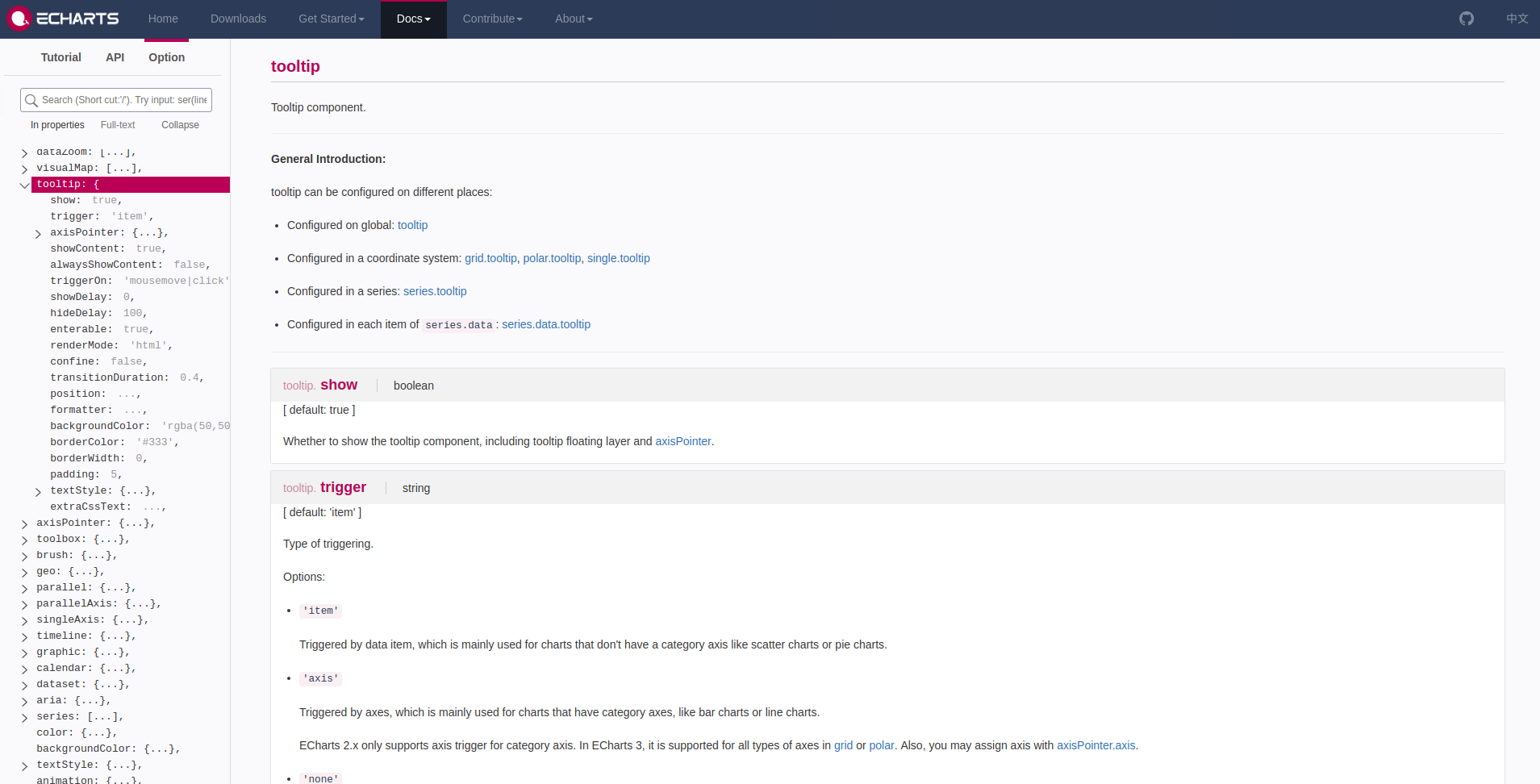
Therefore if we want to change our tooltip to an axisPointer
we can do so by passing a list to axisPointer.
If an option takes a single value, we don’t need to wrap it in a list.
For example, we can try changing the tooltip backgroundColor.
df |>
  e_charts(Date) |> # initialise and set x
  e_line(Temp, smooth = TRUE) |>  # add a line
  e_area(Wind, smooth = TRUE) |> # add area
  e_axis_labels(x = "1973.") |> # axis label
  e_title("New York Air Quality Data", "Maximum daily temperature and mean wind speed") |>  # Add title & subtitle
  e_theme("infographic") |>  # theme
  e_legend(right = 0) |> # move legend to the bottom
  e_tooltip(
    axisPointer = list(
      type = "cross"
    ),
    backgroundColor = "#FFFFFF" # hex code for white color
  )
Once you come to the realisation that JSON ~= list in R,
it’s pretty easy.
You’re caught up on the basics, go to the advanced section or navigate the site to discover how to add multiple linked graphs, draw on globes, use the package in shiny, and more.